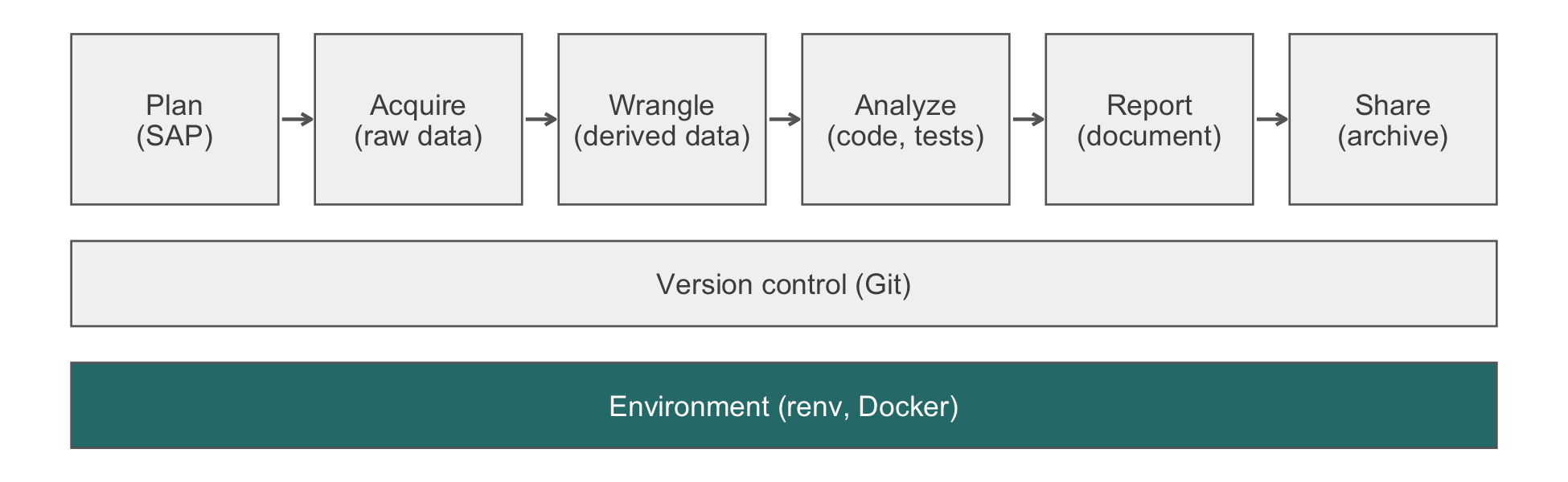
6 Setting Up Your Workstation
A workstation is the one piece of infrastructure in this book that nobody will ever ask you about. No reviewer inspects it, no funder requires it, and no collaborator sees it. As a result, it tends to stay in whatever state it arrived in. Its defects appear as small failures. A path works here and not there. A package is a different version than you thought. A script runs in your session only because yesterday’s objects were quietly restored into it. This chapter installs the minimum a professional biostatistician needs (R, an editor, Quarto, and Git) on macOS, Windows, or Linux. It ends with a checklist of four commands that tells you whether your machine is ready for the rest of the book.
Man is a Tool-using Animal. … Nowhere do you find him without Tools; without Tools he is nothing, with Tools he is all.
Thomas Carlyle, Sartor Resartus (1833–34)
NoteIn this chapter
Reading time. About 20 minutes, plus an hour or so of installing.
You’ll need. A terminal, and permission to install software on your machine. Chapter 5 is an optional introduction to the terminal; this chapter gives every command it uses in full. The chapter loads no packages; the checklist at its end installs renv with install.packages("renv").
You’ll be able to.
- Install R, an IDE (integrated development environment), Quarto, and Git on macOS, Windows (natively or under WSL), or Linux, choosing one route for each.
- Predict where
install.packages()puts a package, with and without a project library. - Keep the user-level
.Rprofileminimal, stop workspace restoration, and keep secrets out of code. - Verify a machine with the ‘Is my machine ready?’ checklist.
Outline.
NoteSkip ahead?
If these answers come quickly, skip to the next chapter. The answers are in Section 6.11.
- When you install a new R package on your workstation, where does R store it by default, and how would you check that location?
- What does a restored
.RDataworkspace do to a script that you believe runs from a clean start? - Which commands tell you whether R, Quarto, Git, and a project’s packages are ready to use?
6.1 The essentials
The goal is a machine whose configuration is written down, restorable, and separate from the projects that run on it. Then the analysis you run on Tuesday gives the same result on Wednesday, and the one you run at home gives the same result as the one in the office. Comfort is a matter of taste, and this book does not try to settle it. Table 6.1 is the whole of what the rest of the book assumes.
| Tool | What it is for | Taught in |
|---|---|---|
| R, version 4.4 or later | Every analysis in the book | Throughout |
| An IDE: RStudio, Positron, or VS Code | Writing and running R and Quarto | This chapter |
| Quarto | Rendering documents that compute their own numbers | Chapter 23 |
| Git, with a GitHub account | Version control and sharing | Chapter 7 |
renv (an R package) |
Pinning a project’s package versions | Chapter 9 |
Two judgments matter more than any choice of product. First, pin the foundational toolchain. Know which version of R and Quarto you run, change it deliberately, and record it per project. Casual updates are how reproducibility breaks without notice. rig, the R installation manager, keeps several R versions side by side on macOS, Windows, and Linux, and Docker (Chapter 10) pins the rest. Second, install each tool by one route. Two installers for the same tool compete for the same directories, and which copy runs then depends on the order of your PATH.
6.1.1 Choosing an IDE
The choice of IDE matters much less than fluency in it. Knowing one editor thoroughly gains you more than switching to a better one. A year spent shallowly in three editors is worse than a year spent deeply in any one. The choice does turn on fit, along two axes. The first is whether your work is R-only or spans several languages. The second is whether it happens on your own machine or on a server you reach over SSH (Secure Shell).
| IDE | What it is | Choose it when |
|---|---|---|
| RStudio | Posit’s IDE for R: editor, console, environment, plots, help, and a Git pane in one window | R is your main language; you want zero setup; you teach or collaborate with RStudio users |
| Positron | Posit’s newer IDE for R and Python, built on the same open-source base as VS Code1 | You work in both R and Python and want an R-aware IDE |
| VS Code | A general editor with an R extension and strong remote editing (SSH, WSL, containers) | You work in several languages, or edit on a remote server or inside WSL |
1 As of 2026-10, Positron has stable releases, with some components still labeled experimental. RStudio remains the dominant choice in academic biostatistics, and VS Code the fastest-growing alternative.
Keyboard-driven editors such as Neovim are a fourth option for people who already use them; Section 6.6 has the details.
6.1.2 Exercises
- Install the tools in Table 6.1, then record the version of each with
R --version,quarto --version, andgit --version. In your IDE’s R console, runR.version.string. Does it match the terminal’sR --version?
NoteSolution
They should match. If the IDE reports a different R from the terminal, two R installations are present, and the IDE and the terminal find different ones first. That is the competing-routes problem above. In RStudio, Tools > Global Options > General shows which R it uses (on Windows it can be changed there). With rig, rig list shows every installed version and rig default sets the one both find. Remove the installation you did not mean to have rather than living with two.
NoteCheck
Question. A colleague installed R from the installer on CRAN (the Comprehensive R Archive Network) a year ago and later ran brew install r to get a newer version. What can go wrong?
Answer. Two R installations now exist, each with its own library of packages. Which one starts depends on the order of the PATH (for the terminal) and on the IDE’s settings, which need not agree. A package installed from the terminal may then be missing in the IDE, or a script may run under a different R version than the one recorded in the project’s lockfile. Keep one route per tool, and use rig when you genuinely need several versions.
6.2 Installing, by operating system
Install in the order of the tabs’ steps: Git first (on macOS and Windows it brings tools that later steps use), then R, then the IDE and Quarto. Download links change. The pages named below are the stable entry points as of 2026-10.
Command-line tools and Git.
xcode-select --installinstalls Apple’s compilers and Git.-
R, by one of two routes:
# either: a single system R from the CRAN installer
brew install --cask r

# or (better, and instead of the above): rig manages
# multiple R versions
brew tap r-lib/rig
brew install --cask rig
rig install release          # latest stable
rig install 4.4.0            # specific version
rig default 4.4.0
Choose one of the two routes, not both. Installing R through the cask and again through
rigleaves two installers competing for the same framework directory. Both use Homebrew (brew.sh). Without Homebrew, the CRAN installer fromcran.r-project.orgis the first route. The IDE and Quarto.
brew install --cask rstudio quarto, or the installers fromposit.co/download/rstudio-desktop/,positron.posit.co, andquarto.org/docs/get-started/.
On Apple Silicon, use the arm64 build of R; Homebrew lives in /opt/homebrew, not /usr/local.
-
Git for Windows from
git-scm.com/download/win. It also installs Git Bash, thebashterminal that Chapter 5 uses. Its installer asks how to treat line endings. The default (check out Windows-style, commit Unix-style) is right. Chapter 8 shows how a repository makes the rule explicit. -
R from
cran.r-project.org(Download R for Windows, then ‘base’), orrigfrom its releases page, which also manages versions. Install Rtools as well. Its version must match R’s minor version (Rtools44 for R 4.4), and it is needed whenever a package has to be compiled from source. -
The IDE and Quarto from the installers at
posit.co/download/rstudio-desktop/(or Positron or VS Code) andquarto.org/docs/get-started/.
R on Windows accepts forward slashes in paths ("C:/Users/you/project"); a backslash must be doubled ("C:\\Users\\you\\project") because it is R’s escape character.
WSL (the Windows Subsystem for Linux) runs a real Linux system inside Windows. The commands in this book, the Docker images of Chapter 10, and the servers you will later use then all behave the same way. In an administrator PowerShell:
wsl --installThis installs WSL 2 with Ubuntu as the default distribution. Open Ubuntu from the Start menu, create a user, and follow the Linux tab inside it. Two rules make WSL pleasant:
- Keep projects in the Linux filesystem (under
~/inside Ubuntu), not under/mnt/c/. File access across the boundary is much slower, and Windows tools may rewrite line endings. - Edit with an IDE that can reach inside WSL. VS Code with its WSL extension runs the editor in Windows and R in Linux. RStudio Desktop for Windows uses a Windows installation of R, not the R inside WSL.
On Ubuntu or Debian:
sudo apt update
sudo apt install --no-install-recommends r-base r-base-dev git
The distribution’s R can lag the current release. For the latest version, add the CRAN apt repository (see cran.r-project.org/bin/linux/ubuntu/), or use rig, which also runs on Linux. Packages from CRAN are compiled from source on Linux by default, which is slow and needs system libraries. Posit Public Package Manager serves prebuilt Linux binaries, and its setup page gives the repository URL for your distribution.2 Install the IDE and Quarto from their .deb packages, for example sudo apt install ./quarto-<version>-linux-amd64.deb.
2 The same service serves CRAN as it stood on a given date, which Chapter 9 uses to make restores reproducible.
6.2.1 After installing: Git and Quarto
Tell Git who you are, once per machine (the name and email appear in every commit you make):
git config --global user.name "Your Name"
git config --global user.email "you@example.com"
git config --global core.editor "code --wait"   # or your editor
git config --global init.defaultBranch main
For Quarto, check the version, and pin it per project if a document depends on it:
# verify version
quarto --version

# in a project's _quarto.yml, optionally require a
# version range (rendering stops with an error otherwise)
# quarto-required: ">= 1.5.55"
The quarto-required key does not install anything. It makes a render on the wrong version stop with an error, instead of succeeding quietly with different output.
ImportantLLM prompt
A model can draft a bootstrap script for a new machine. The test of the script is the checklist in Section 6.5, not the model’s assurance.
Context. I am setting up [macOS 15 on Apple Silicon | Windows 11 with WSL 2 and Ubuntu 24.04 | Ubuntu 24.04]. I need R (through
rig), [RStudio | Positron | VS Code], Quarto, and Git, configured with my name and email.Constraints. Install each tool by exactly one route. Do not use
sudoexcept for the system package manager. Do not pipe a downloaded script into a shell except for an installer whose documentation prescribes it, and name that documentation. Make the script safe to run twice.Criteria. The script ends by running
R --version,quarto check, andgit config --list, and the last line it prints says which of them failed, if any.
Failure mode. The model writes for the wrong platform (an Ubuntu script when you said macOS), assumes Intel paths (/usr/local rather than /opt/homebrew on Apple Silicon), or installs R twice by two routes. Check. Run it in a fresh virtual machine or a new user account, then run every row of 1 yourself. The prompt contains no data, only your platform.
6.2.2 Exercises
- Install
rigand use it to install two R versions side by side (for example the current release and 4.4). Install a small package in each. How can you show that the two versions keep separate user libraries?
NoteSolution
Start each version (rig default <version>, then R) and run .libPaths()[1]. The user library’s path ends in the R minor version, for example .../4.4/library on macOS or ~/R/x86_64-pc-linux-gnu-library/4.4 on Linux. After install.packages("praise") in one version, find.package("praise") succeeds there. In the other version it fails with ‘there is no package called’. Packages are built for one minor version of R, which is why each keeps its own library.
NoteCheck
Question. On Windows with WSL, you keep your project under /mnt/c/Users/you/project so that you can open it from Windows too. What does that cost?
Answer. Speed and, potentially, line endings. Every file operation crosses from Linux to the Windows filesystem. That is much slower for the many small files that a project with a package library contains. In addition, Windows editors that touch the files may write CRLF endings that the Linux tools then read (Chapter 5 shows what a stray carriage return does to a count). Keep the project in ~/ inside WSL and edit it with an IDE that reaches into WSL.
6.3 Where R finds packages
Almost every ‘it works on my machine’ report about a missing or wrong-version package resolves to one question: which library did R look in? Figure 6.2 is the search order. Note that renv works by replacing the user and site libraries rather than by adding to them.
flowchart TD
  Q["library(dplyr)"] --> A{"project renv library<br/><i>present and active?</i>"}
  A -->|"yes"| B["renv/library/...<br/><i>project-pinned version</i>"]
  A -->|"no"| C{"user library"}
  C -->|"found"| D["~/Library/R/...<br/><i>whatever you last installed</i>"]
  C -->|"not found"| E["site and system libraries<br/><i>whatever the admin installed</i>"]
  B --> F["first match wins"]
  D --> F
  E --> F
renv puts the project library first and removes the user and site libraries. That is why the same install.packages() call installs to different places depending on where you ran it.
R looks for packages in the directories returned by .libPaths() (display-only, because the paths are machine-specific):
.libPaths()
#> [1] "/Users/you/Library/R/arm64/4.4/library"
#> [2] "/Library/Frameworks/R.framework/Versions/4.4-arm64/Resources/library"
The first is your user library; later entries are system libraries. install.packages() installs into .libPaths()[1] by default. The paths shown are for the CRAN build of R 4.4 on an Apple Silicon Mac. Yours will differ by platform, R version, and installer (a Homebrew-built R, for example, reports directories under /opt/homebrew/). Run the call rather than trust the listing.
With renv active in a project, the project’s renv/library/ takes precedence:
.libPaths()
#> [1] "/path/to/project/renv/library/macos/R-4.4/aarch64-apple-darwin20"
#> [2] "/Users/you/Library/Caches/org.R-project.R/R/renv/sandbox/..."
Your user library is no longer on the list at all. The second entry is a sandboxed view of the system library. This is what renv does. Each project has its own package library, isolated from other projects and from your user library (Chapter 9 covers renv in depth). The pattern that follows:
- The user library holds a small set of packages used across projects (
usethis,devtools,rmarkdown, perhapstidyverse), updated when convenient. - Project libraries, under
renv, hold the version-pinned dependencies of each analysis.
6.3.1 Exercises
- In an R session outside any project, run
.libPaths()[1], install a package, and confirm withfind.package()where it went. Then open a project that usesrenvand repeat. What changed, and what didrenv.lockrecord?
NoteSolution
Outside the project, find.package("<pkg>") returns a path under your user library, the first entry of .libPaths(). Inside the renv project, the first entry is the project library, and the package is installed there. Your user library does not change. renv.lock records nothing until you run renv::snapshot(). In the meantime, once the project’s code uses the package, renv::status() reports it as installed but not recorded.
NoteCheck
Question. You run install.packages("dplyr") from inside a project that has renv active. Where does it install, and does the lockfile change?
Answer. Into the project’s renv/library/ directory, not the user library. renv modifies .libPaths() so that the first entry is the project library, and install.packages() installs to the first entry. The lock file (renv.lock) is not updated. It changes only when you run renv::snapshot(). Until then, once the project’s code uses the package, renv::status() flags it as installed but not recorded. This isolation is the point of renv. A package update inside one project does not affect any other project’s packages.
6.4 Startup files and secrets
Anything in a user-level .Rprofile runs at the start of every session and changes its behavior. A heavy one (loading tidyverse, setting global options, defining helpers) makes your sessions different from a colleague’s. It also lets a script that does not load what it needs run on your machine and fail on theirs. Keep the user-level file nearly empty. A project-level .Rprofile, by contrast, is part of the project and runs for anyone who opens it.
Things that are fine in ~/.Rprofile:
# ~/.Rprofile

# friendlier defaults
options(
  repos          = c(CRAN = "https://cloud.r-project.org/"),
  prompt         = "R> ",
  continue       = " + ",
  digits         = 7,
  warnPartialMatchArgs = TRUE,
  warnPartialMatchAttr = TRUE,
  warnPartialMatchDollar = TRUE
)

# only attach interactively (not in scripts or knitting)
if (interactive()) {
  suppressMessages(require(devtools))
}
Things to avoid in it:
.Rprofile.
| Avoid | Because |
|---|---|
library(tidyverse) |
Scripts come to depend on it silently |
| Defining helper functions | Collaborators do not have them |
options(stringsAsFactors = FALSE) |
Harmless since R 4.0, and a sign of muscle memory from older versions |
renv itself uses a project .Rprofile to activate the project library. Anything else in a project .Rprofile should be deliberate, because every collaborator runs it.
6.4.1 The restored workspace
R can save every object in a session to a file named .RData when it quits, and restore them when it next starts in that directory. RStudio offers to do both by default. The chunk below makes the consequence concrete. It saves a cohort object into an .RData file in a temporary directory. It then starts R there twice, once as an IDE does and once with --vanilla, which skips the restore.
proj <- file.path(tempdir(), "restore-demo")
dir.create(proj, showWarnings = FALSE)
cohort <- data.frame(id = 1:3)
save(cohort, file = file.path(proj, ".RData"))

r_bin <- file.path(R.home("bin"), "R")
start_r <- function(flags) {
  old <- setwd(proj)
  on.exit(setwd(old))
  writeLines(system2(r_bin, c(flags, "--no-echo", "-e",
                              shQuote("exists('cohort')")),
                     stdout = TRUE))
}
start_r(c("--no-save", "--no-init-file"))
#> [1] TRUE
start_r("--vanilla")
#> [1] FALSE
unlink(proj, recursive = TRUE)
The first session finds cohort although no code in it created the object. The second, a clean start, does not. (The first also skips your .Rprofile, so that the workspace is the only difference.)
WarningPitfall
A restored workspace makes a broken script run. Suppose a script uses an object it never creates, because you deleted the line that built it or built it by hand in the console last week. The restored .RData supplies the object, and the script runs on stale data, in your session only. A collaborator, a fresh clone, or a render fails. Worse, it may run on a different object of the same name. Turn the restore off once. usethis::use_blank_slate() sets RStudio never to save or restore the workspace (in Tools > Global Options > General). Running R --vanilla, or Session > Restart R before a final run, gives a clean start.
6.4.2 Secrets stay out of code
Passwords, API (application programming interface) keys, and tokens belong in neither a script nor a startup file that might be shared. Two places are standard:
# ~/.Renviron (user-level; never in a repository)
# REDCAP_TOKEN=paste-the-token-here

Sys.getenv("REDCAP_TOKEN")

# or the operating system's credential store
keyring::key_set("redcap")   # prompts; stores in the keychain
keyring::key_get("redcap")
~/.Renviron is read at startup, and its variables are available through Sys.getenv(). It lives in your home directory, outside every project. A project-level .Renviron must be listed in .gitignore (Chapter 7). The keyring package stores the secret in the macOS Keychain, the Windows Credential Manager, or the Linux Secret Service. The secret is then never in a plain-text file at all (display-only: both change your machine’s state).
ImportantLLM prompt
When R fails at startup or behaves differently in your IDE than in a terminal, a model can narrow the cause if you give it the startup evidence.
Context. Below are the error or unexpected behavior, the output of
sessionInfo(),.libPaths(), andSys.getenv(c("R_LIBS_USER", "R_PROFILE_USER")), and the contents of my~/.Rprofileand the project’s.Rprofile, with every token and password replaced by<redacted>.Constraints. Do not suggest reinstalling R or deleting the library. Propose diagnostics before fixes, one at a time.
Criteria. Name the most likely cause among: a startup file doing something unexpected, a restored
.RDataworkspace, a second R installation or library on the path, and an inactiverenvproject. Give the command that would confirm it.
Failure mode. A generic answer (‘reinstall the package’) that treats the symptom, or a diagnosis that ignores the workspace. A restored .RData is a common cause of ‘works in my session only’, and models rarely raise it unprompted. Check. Run R with --vanilla, which skips both startup files and the restore. If the problem disappears, add them back one at a time. Startup files can contain secrets, so redact before sending, and send no data (Section 12.3).
6.4.3 Exercises
- Compare your
~/.Rprofile(if you have one) with Table 6.3, and runusethis::use_blank_slate(). Then, in a temporary directory, reproduce the restore demonstration above with your own R: what do the two sessions print?
NoteSolution
The output of the demonstration chunk above is the key. The session that restores the workspace prints TRUE, and the --vanilla session prints FALSE. Some lines in your .Rprofile may load packages, define functions, or set options that change results (digits aside). These belong in the project that needs them, written as code the project runs. usethis::use_blank_slate() reports that it set the two workspace options. Check them in RStudio’s General options.
NoteCheck
Question. You moved a database password from a script into .Renviron in the project directory. Is it now safe?
Answer. Only if the project’s .gitignore lists .Renviron and the file was never committed. A project-level .Renviron sits in the repository’s working tree, so git add . stages it like any other file. A password in any earlier commit is exposed for good (Chapter 7). The user-level ~/.Renviron, outside every project, or the system keychain through keyring, avoids the question.
6.5 Is my machine ready?
Run the four checks in 1 from a terminal. Later chapters point back here when they assume a working setup.
| Check | Command | Ready when |
|---|---|---|
| R is installed and found | R --version |
Prints R 4.4 or later, the version you meant to install |
| Quarto finds its tools and R | quarto check |
Every section ends in OK, and the R section lists knitr and rmarkdown
|
| Git knows who you are | git config --list |
The list includes user.name, user.email, and init.defaultBranch=main
|
| A project’s packages match its lockfile |
Rscript -e 'renv::status()', run in a project that uses renv
|
It reports no issues |
The last row needs a project. The book’s own repository will do, as will the practice repository of Chapter 7 once you have initialized renv in it. install.packages("renv") installs the package into your user library first.
TipVerification
Run the checklist on a machine you did not set up yourself (a lab computer, a colleague’s laptop, or a fresh user account on yours). A check that passes only on your own account depends on something in your home directory, most often a startup file or an .RData workspace.
NoteCheck
Question. quarto check reports OK for everything except the R section, which says it cannot find R, although R --version works in the same terminal. What is the likely cause?
Answer. Quarto looks for R through the PATH and, on some systems, through QUARTO_R. A second installation, or an R the IDE knows about but the PATH does not, produces exactly this split. Run which R (or where R on Windows) to see which executable the terminal finds. If you use rig, rig default makes one version the one both find. Otherwise, set QUARTO_R to the R you mean.
6.6 Level up (optional)
Nothing in this section is needed for the rest of the book. It collects the configuration that experienced analysts add once the essentials are routine: a keyboard-driven editor, a shell that remembers more, readable fonts, and a way to rebuild all of it on a new machine.
6.6.1 Editors beyond the IDE
Neovim, with an R plugin, is the keyboard-driven modal editor. It is highly customizable, fast, and usable over SSH without modification, and it has a steep learning curve. What makes it usable for analysis, and not only for editing, is a link to a live R session. R.nvim is the established choice. The in-house zzvim-R is a lighter one, used in this book’s own development. It sends the current line, a visual selection, or a whole Quarto chunk to an embedded terminal. Its render command calls rmarkdown::render() rather than quarto render, so a @fig- cross-reference stays as literal text in the output. When cross-references matter, render from the terminal or with a dedicated Quarto editor integration. Choose Neovim if you already use vi or Neovim for other languages, or do most of your work over SSH.
6.6.2 Shell and terminal
On macOS and most Linux systems zsh is the default interactive shell. A minimal ~/.zshrc:
# minimal zshrc

# history
HISTFILE=~/.zsh_history
HISTSIZE=10000
SAVEHIST=10000
setopt SHARE_HISTORY HIST_IGNORE_DUPS

# prompt: starship is a good default
eval "$(starship init zsh)"

# R-friendly aliases
alias R='R --no-save'
alias r='R --quiet --no-save'

# editor
export EDITOR='code'

# brew completions on macOS (zsh, not bash, completion)
if type brew &>/dev/null; then
  FPATH="$(brew --prefix)/share/zsh/site-functions:${FPATH}"
  autoload -Uz compinit
  compinit
fi
starship (starship.rs, brew install starship) gives a fast prompt that shows the Git branch. tmux is worth learning if you work on servers over SSH. Its sessions survive disconnection, and they can hold several panes and named windows. A minimal .tmux.conf:
set -g default-terminal "screen-256color"
set -g mouse on
set -g status-position top
bind-key C-a send-prefix
unbind C-b
set -g prefix C-a
For local work you do not need tmux; the IDE’s session management suffices.
6.6.3 Fonts
Programming fonts distinguish similar characters (0 and O; 1, l, and I), and some render >= as a single glyph (a ligature). JetBrains Mono (jetbrains.com/lp/mono) and Fira Code have ligatures; Adobe’s Source Code Pro does not. Nerd Fonts patch common programming fonts with the extra glyphs that prompts such as starship use:
brew install --cask font-jetbrains-mono-nerd-fontSet the font in your terminal and editor; in RStudio, under Tools > Global Options > Appearance.
6.6.4 Dotfiles in version control
Your .zshrc, .gitconfig, .Rprofile, init.vim (Neovim), and editor settings are configuration you will want on every machine you use. Version-controlling them prevents ‘I forgot what I changed last time’. A common layout:
~/dotfiles/
├── zsh/
│   ├── .zshrc
│   └── .zsh_aliases
├── git/
│   └── .gitconfig
├── R/
│   └── .Rprofile
├── nvim/
│   └── init.vim
├── README.md
└── install.sh        # symlinks files into place
GNU stow (or chezmoi, or yadm) symlinks the files into place:
cd ~/dotfiles
stow zsh git R nvim    # symlinks ~/.zshrc -> ~/dotfiles/zsh/.zshrc, etc.
Push the dotfiles repository to GitHub as a private repository. Shell histories, .gitconfig email addresses, internal hostnames, and the occasional token pasted into .zshrc all end up in dotfiles. Make the repository public only after you have audited every file for them. Keep secrets out of it entirely, in ~/.Renviron or the keychain (Section 6.4). On a new machine:
git clone https://github.com/you/dotfiles.git ~/dotfiles
cd ~/dotfiles
stow zsh git R nvim
6.6.5 A fresh-laptop script
The steps of this chapter, for macOS, as one script (display-only: it changes a machine):
#!/usr/bin/env bash
# fresh-mac.sh: bootstrap a new macOS workstation

# Homebrew
/bin/bash -c "$(curl -fsSL https://raw.githubusercontent.com/Homebrew/install/HEAD/install.sh)"
eval "$(/opt/homebrew/bin/brew shellenv)"

# core tools
brew install git tmux starship stow
brew install --cask font-jetbrains-mono rstudio quarto

# R via rig only, so that R is not installed twice
brew tap r-lib/rig
brew install --cask rig
rig install release

# clone and apply dotfiles
git clone https://github.com/you/dotfiles.git ~/dotfiles
cd ~/dotfiles && stow zsh git R nvim

# install commonly-used global R packages
Rscript -e 'install.packages(c("renv", "usethis", "devtools",
  "remotes", "rmarkdown"))'

echo "Setup complete. Reboot recommended."
The first command downloads a script and pipes it straight into bash, which runs whatever the server returns with your privileges. That is the installation method Homebrew documents, and it is acceptable for a source you have decided to trust, over HTTPS (an encrypted, authenticated connection). It is not a pattern to copy for an arbitrary URL. When in doubt, download the script, read it, and then run it. The brew shellenv line is needed on Apple Silicon, where Homebrew lives in /opt/homebrew and is not yet on the PATH of the shell running the script. Refine the script each time you set up a new machine, and end it with the checklist in 1.
6.7 Rules of thumb
-
Habit 4: pin the environment. One installation route per tool, versions you can name, and
quarto-requiredor a lockfile wherever a result depends on a version. -
Habit 1: the compendium is the unit. Nothing an analysis needs may live only in your
.Rprofile, your workspace, or your memory; start clean and let the project load what it uses. - Habit 8: a bug that produces a plausible number is the expensive kind. A restored workspace turns a broken script into a working one with stale data. Turn the restore off.
6.8 Cumulative practice
-
Cumulative, optional (uses Chapter 5). Write
check-machine.sh, a script that runs the four checks in 1 and exits with a non-zero status if any fails. Run it on your machine, then make one check fail on purpose (for example by running it withPATHstripped of Quarto) and confirm that the script says so. -
On your own work (no key). For a completed analysis of your own, find three hard-coded paths or other machine-specific assumptions and refactor them away, then run the analysis from a fresh clone with
R --vanilla.
NoteSolution
One version, which reports every check before deciding:
#!/usr/bin/env bash
# check-machine.sh: the 'Is my machine ready?' checklist
set -uo pipefail

failed=0
check() {
  if "$@" > /dev/null 2>&1; then
    echo "ok      $*"
  else
    echo "FAILED  $*"
    failed=1
  fi
}

check R --version
check quarto check
check git config --global user.name
check git config --global user.email
check Rscript -e 'stopifnot(isTRUE(renv::status()$synchronized))'

exit "$failed"
It omits set -e on purpose, so that one failure does not hide the others, and keeps -u and pipefail. git config with a key exits non-zero when the key is unset, which makes it a check rather than a listing. Rscript -e 'renv::status()' alone prints its report but exits zero even when it finds issues. The last check therefore tests the synchronized element of the result, which turns a report into an exit status. Run the script from a project directory so that the renv check has a lockfile to read. PATH=/usr/bin:/bin bash check-machine.sh makes the Quarto check fail.
6.9 Cheat sheet
| Task | Command |
|---|---|
| Which R, which version |
R --version; which R (where R on Windows) |
| Manage R versions |
rig list; rig install 4.4.0; rig default 4.4.0
|
| Check Quarto and its tools | quarto check |
| Introduce yourself to Git |
git config --global user.name "..."; ... user.email "..."
|
| See Git settings | git config --list |
| Where packages install |
.libPaths()[1]; find.package("pkg")
|
| Turn off workspace restore | usethis::use_blank_slate() |
| Start R clean | R --vanilla |
| Read a secret |
Sys.getenv("NAME"); keyring::key_get("service")
|
| Install WSL (admin PowerShell) | wsl --install |
| Is my machine ready? | 1 |
6.10 Further reading
- (Bryan, 2019), whose installation chapters cover Git, Git clients, and the R side of the setup in more detail.
- The
rigdocumentation atgithub.com/r-lib/rig. - Microsoft’s ‘Install WSL’ guide at
learn.microsoft.com/windows/wsl/install.
6.11 Prerequisites answers
- R stores installed packages in the directory returned by
.libPaths()[1], typically~/Library/R/...on macOS or~/R/x86_64-pc-linux-gnu-library/...on Linux. Withrenvactive in a project, the project’s private library underrenv/library/takes precedence, isolating the project’s package versions from the user library and from other projects. - It supplies, from the previous session, every object the script uses but never creates. The script then runs in your session and fails (or runs on different objects) everywhere else. It only appears to run from a clean start. Turn the restore off (
usethis::use_blank_slate()) and test withR --vanilla. -
R --version,quarto check,git config --list, and, inside a project that usesrenv,renv::status(): the checklist in